Pages

Showing posts with label google docs. Show all posts

Wednesday, October 8, 2014

Clip Art in Google Docs

Want an easy way to spice up your documents?  There is a quick way to add clip art to Google Docs.  To install it, follow these simple steps:

  1. Create or open any Google Doc.
  2. Click on the "Add-ons" menu and then "Get add-ons..."
  3. You'll see the add-ons collection.  To cut through the list quickly, search for "clipart" on the upper-right corner.


  4. Click on the "+ Free" button.
  5. Click the "Accept" button.  


Congratulations.  Your new clip art system is now installed and ready to use -- in this document and any others.

To use it, just click on "Add-ons", then "Openclipart" and "Search Clipart".  (Its easier than it sounds.)


That will bring up a sidebar where you can search for images and just double-click on them to insert them into your document.


Tuesday, May 14, 2013

Keeping Google Docs

If you are graduating or moving soon, you may be interested in knowing that you can download all of your files in Google Docs.  Putting them on a flash drive or emailing them to yourself allows you to keep them after you leave the Cairo-Durham schools.

The directions haven't changed from last year, so you can follow those directions.

Tuesday, June 5, 2012

Taking Google Docs With You


If you're graduating, moving, or otherwise leaving Cairo-Durham CSD soon, you might be interested in taking your Google Docs files with you.  This is a lot easier than you might think.


  1. Go to the Start Portal.
  2. Click on Docs and login, if necessary.
  3. Click on the check box for any file or files.
  4. A "More" button should now appear.  Click on it.
  5. The "More" button should pop-down a menu.  From that menu, select "Download..."
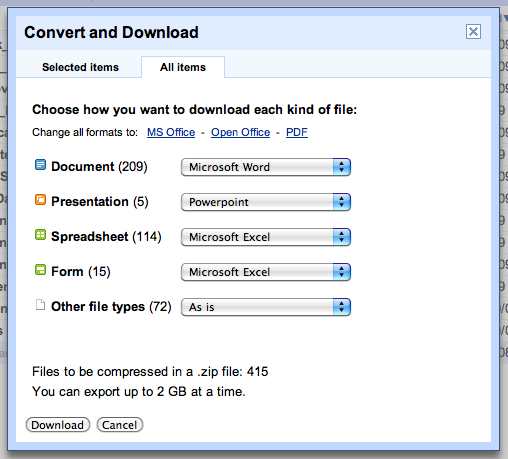
  6. You will see a new window.  In that window, there are two tabs named "Selected items" and "All items.  Click on "All items".
  7. There will be three options in small print.  They are "MS Office", "Open Office", and "PDF".  Select the format that you want to convert your files into.  If in doubt, you can do this process once for each option and then save all three copies of your files.  Most people find "MS Office" to fit their needs.
  8. Click "Download".
  9. Follow any additional directions that appear on the screen.
Soon you should have copies of your files downloaded.  You can place these on a flash drive, email them to someone, upload them to your personal Google Docs account, or upload them to any number of other services such as DropBox or SkyDrive.

(Note:  This is an update to the old article "Saving Google Docs" from June 13, 2011.)

Wednesday, September 14, 2011

Comment-Only Access in Google Docs

You can now give someone the ability to write comments in the margines of your Google Docs without worrying about them changing the document itself.

The new "Can comment" access is like a limited version of "Can edit".  This is great for peer review of classwork or teacher meetings.

For more information, check out Google's official announcement.

Monday, June 13, 2011

Saving Google Docs

You may find that you (or your students) want to save all of your Google Docs files.  This can be useful for any number of good reasons:  graduation, retirement, leaving Cairo-Durham schools, or just wanting a backup.

To download your Google Docs files, try the directions from Google themselves:
http://docs.google.com/support/bin/answer.py?hl=en&answer=49115&topic=1153350

Alternately, if you want all of your files in one shot, try this:

  • Go to the Start Portal and click on Google Docs.
  • Login.
  • Hover your mouse over any random document so that "Actions" shows up on the right-hand end, next to the date the file was last changed.
  • Click on "Actions".  This will show a pop-up menu.
  • Click on "Download..." in that menu.  This will show a new window named "Convert and Download".
  • Click on the "All items" tab near the top of the "Convert and Download" window.
  • Select the type of computer file that you want each type of Google Doc to convert into when you download it.  For example, you might select "PowerPoint" for "Presentation".
  • Click the "Download" button.
  • Now wait.  If you can't wait, click the "Email when ready" button and check your email later.
  • After a few minutes, your computer will download an archive of your files.  If this doesn't begin automatically, you should have a link that you can click on.
Find "Download" in the "Actions" menu.

Select "All items" and converted file types.

Wait while it "packs up" your files.
When the archive is made, you can download it.
If the download doesn't begin automatically,
click "click here to download".

Friday, March 4, 2011

21 Google Docs Tips

PC World Magazine offers up 21 great tips for Google Docs.