Pages

Monday, June 13, 2011

Saving Google Docs

You may find that you (or your students) want to save all of your Google Docs files.  This can be useful for any number of good reasons:  graduation, retirement, leaving Cairo-Durham schools, or just wanting a backup.

To download your Google Docs files, try the directions from Google themselves:
http://docs.google.com/support/bin/answer.py?hl=en&answer=49115&topic=1153350

Alternately, if you want all of your files in one shot, try this:

  • Go to the Start Portal and click on Google Docs.
  • Login.
  • Hover your mouse over any random document so that "Actions" shows up on the right-hand end, next to the date the file was last changed.
  • Click on "Actions".  This will show a pop-up menu.
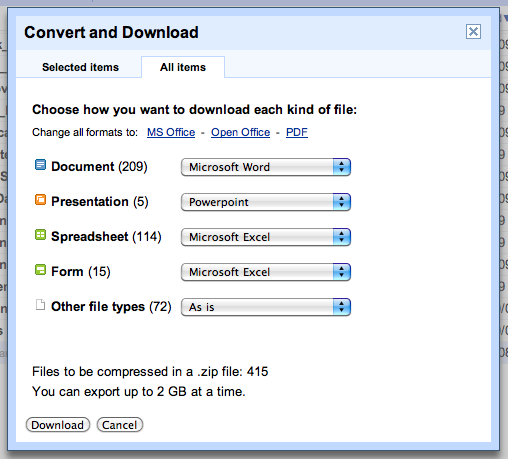
  • Click on "Download..." in that menu.  This will show a new window named "Convert and Download".
  • Click on the "All items" tab near the top of the "Convert and Download" window.
  • Select the type of computer file that you want each type of Google Doc to convert into when you download it.  For example, you might select "PowerPoint" for "Presentation".
  • Click the "Download" button.
  • Now wait.  If you can't wait, click the "Email when ready" button and check your email later.
  • After a few minutes, your computer will download an archive of your files.  If this doesn't begin automatically, you should have a link that you can click on.
Find "Download" in the "Actions" menu.

Select "All items" and converted file types.

Wait while it "packs up" your files.
When the archive is made, you can download it.
If the download doesn't begin automatically,
click "click here to download".

Tuesday, May 24, 2011

Apple Sale for College Students

As a follow up to the previous post about purchasing computers for college-bound students, you might be interested in knowing about Apple's new sale.  You can buy a Mac at the discounted/academic pricing and they'll discount an iPod -- including the iPod Touch, which is basically a pocket-sized computer.

EDIT:  I stand corrected.  The sale hasn't started yet.  It has happened every May or June for the last few years, so it will probably start soon.  Sorry if I got your hopes up.  Just try Apple's web site in a few weeks to see if its changed.

EDIT 2:  The sale just began today.

Tuesday, May 10, 2011

Customize Email's Look

Want to make email look better?  You can customize the background picture, colors, fonts, etc. of your email account.

This does not effect the look of email that you send.  So you can make a very personal working environment without worrying about looking unprofessional to anyone you email.

Fo details, check out Google's announcement of this new feature:

http://gmailblog.blogspot.com/2011/04/custom-background-image-themes.html

Tuesday, May 3, 2011

Making New Passwords

Passwords.  We all use them.  Most of us hate them.  Making a password that is hard for anyone else to guess means making it hard to remember, right?  Not at all.  You just need a system.

Here are three systems (with examples) that you can consider.  They will make your life easier and safer at the same time.

Methods:

  1. Sing.
  2. No vowels.
  3. Shuffle two words.


Method #1:  Sing

Pick a verse from a song that you know well.  Then take the first letter of each word, perhaps with some shorthand.

Example #1:  "One is the loneliest number that you'll ever do" becomes "oitlntyed" or even "1itl#tyed".  This is a really hard to guess, but its very easy for any Beatles fan to remember.


Example #2:  "Mary had a little lamb, who's fleece was white as snow" becomes "Mhallwfwwas".  If you want to make it harder to guess, add punctuation with "Mhall,wfwwas."  (Note that "." is part of the password.)


Method #2:  No Vowels

Pick a short phrase from a song, book, or other memorable source.  Take out all the vowels and capitalize the first letter of every word.  You could also replace the vowels with numbers.

Example #1:  "No such thing as a free lunch" becomes "NSchThngsFrLnch".


Example #2:  "Bottled water" becomes "BttldWtr" (for no vowels) or "B0ttl3dW4t3r" (for number substitutions.)

Hint:  Most vowels have a number that looks loosely like it.  "a" = "4", "e" = 3", "i" = "1", and "o" = "0".  For "u", you could use "\" and "/" together, or "^", or something that you pick.  Just be consistent, so that you can remember it later.  You can even choose to just leave out any "u".


Method #3:  Shuffle

Pick two words and interweave the letters.

This method takes a little practice, but its easy to reconstruct your password if you forget it.  As a bonus, you can effectively have the same password on lots of different websites while reducing the risks of password-reuse.

Example #1:  "milk" and "shake" become "msihlakke".

Example #2:  "water" and "exercise" become "weaxteerrcise".  You can also add some numbers to the sorter word to fill in the empty spots.  For example, "weaxteerrc1i2s3e".

Example #3:  Pick a word for your new, universal password system.  Then interleave it with the name of the site or service.  For example, if your word is "phone", then your Amazon.com password would be "pAhmoanzeon" and your eBay password would be "pehBoanye".

Tuesday, April 26, 2011

College Purchases

Looking for a computer for college?

Apple offers student discounts year-round, but often offers a laptop-and-iPod deal in the May - August time frame.  Check it out at http://www.apple.com/store and click on "Education Store" on the left.  (Or just go to http://store.apple.com/us/browse/home/education_routing).

Dell offers discounts to college students at http://www.delluniversity.com.

HP offers discounts to students at http://www.shopping.hp.com/academy.

Lots of software can be purchased at http://www.academicsuperstore.com/.  This includes the ever popular Microsoft Office, Photoshop, and others.  These discounts are available to both students and teachers.

Also, keep an eye on deal sites like woot.com, dealnews.com, dealmac.com, and cowboom.com.  You never know when they list a great deal.  You can also check out RetailMeNot.com for coupons.

Lastly, compare prices and read customer reviews of products on sites like Amazon.com, NewEgg.com, Epinions.com, and Google.com/products.

Happy shopping.

Tuesday, April 12, 2011

Google Search

There are a number of ways to make Google more accurate, some of which are quite easy.  Here are a few examples follow:

Search:  Tiger Woods
Means:  Find Web pages with both of the words 'Tiger' and 'Woods'.  This is the most common way to use Google.

Search:  "Tiger Woods"
Means:  Find pages with these exact words in this exact order.  Good for exact phrases, e.g. finding quotes, verifying a scam, and plagiarism checks.

Search:  Tiger Woods -forest
Means:  Find pages with both of the words 'Tiger' and 'Woods', in any order, that do not include the word 'forest'.  Good for countering the effect of words with two meanings, such as "woods" in this example.

Search:  Tiger Woods site:espn.com
Means:  Find pages with both of the words 'Tiger' and 'Woods', in any order, that are on the espn.com system.  Good for web sites without a search function.


These techniques can be mixed. For example:

Search:  "Tiger Woods" golf -forest site:espn.com
Means:  Find pages with the exact phrase "Tiger Woods", and the word golf, without the word forest, and only on the espn.com site.

Tuesday, April 5, 2011

Save Paper with "Print What You Like"

For those of you who don't know, there is a way to print parts of web pages without printing the parts that you don't need.  This can save paper, ink, and space on your desk.

Just go to PrintWhatYouLike.com and type (or paste) in the address of the page that you want to print.  Then you can click on the parts of the page that you want to print and they'll highlight. You can highlight as many or as few chunks of the page as you want. Then you can click on "Isolate Selected" and print it.

You can also select the advertisements and click "Remove Selected", if you prefer. Or just click "Remove Background" for a quick way to reduce ink use.

For easier access to this service, you can make a button for it. Part way down the page is a "bookmarklet". If you drag this into Safari's button bar (just below the address bar), you can create a single-click button that loads the current page that you're viewing into the PrintWhatYouLike.com service. This makes it really quick to use.