Pages

Wednesday, January 9, 2019

Gift Card Scams

A word of warning:  There is an email scam that has been around for around for a while.  It goes something like this...

Your principal allegedly emails you while in a meeting.  They ask you to buy iTunes gift cards to help them out with a project.  When you agree, they talk you into buying one or more $100 cards.  Then they ask you to send them the codes, since they are still in the meeting.  They promise to pay you back when they see you next.

What is really happening is:  (1) it's sent by a random person that just set the text next to their address to be the name of your principal, (2) they're going to sell those codes on eBay for $80 each, (3) they have no intention of paying you back.  Since the schools' principals are listed on our website and setting the text next to an email address is very easy, this is a remarkably simple scam.  It's much easier than actually breaking into someone's account and sending email from it.  So this is a low effort, high income scam.

I've seen several variations of this.  I've even heard of small churches being hit with messages claiming to be the pastor.

To protect yourself from scams like this:
  1. Always check with the alleged sender directly before spending your own money.
  2. Never send gift card codes in the mail.
  3. Check the actual email address.  On Gmail, you can click the down-arrow near the top-left corner of the message to see it.  See image below for an example.


Friday, October 6, 2017

Wifi for Employees

Employees may now join their devices to the district's wireless network to gain Internet access.  Once configured, devices will connect automatically when in range of the district's network.

The exact directions will vary from one device to the next, but this article will give the generic information needed for all devices.  For example, the names of the buttons will differ between an iPhone or a Pixel, but the settings that both devices need are the same.

Please note that this will only allow Internet access and not access to internal-only resources, such as most printers and servers.  Resources which happen to be hosted off-site, such as email, Google Drive, and SchoolTool, will work.

The necessary settings are as follows.
  • Network name:  Staff
  • EAP method:  PEAP
  • Phase 2 authentication:  MS CHAPv2
  • Certificate:  "Trust", "Accept", or "Do not validate", as your device allows.  If asked to trust the certificate, make sure that it is from dir1.cd.cairodurham.org and expires on 10/2/22 at 2:05:10pm.
  • Anonymous identity:  Leave blank, if this option is presented.
  • Username:  Use the username that you would use on the Macs or PCs.
  • Password:  Use the password that you would use on the Macs or PCs.
For reference, this is what it looks like on iOS 10 on an iPhone 6 after selecting "Staff".


By contrast, this is what it looks like on Android 8 (a.k.a. "Oreo") running on a Google Pixel.


Once these settings are entered, they will allow the device to connect to the district's "Staff" wifi network as soon as the device can see it.  It won't prompt for these settings, including the employee's password, again.  If you change your password on a Mac or PC, you will have to update the setting on your personal device manually.

Please note that use of this wifi service is subject to the usual policies that apply to any district resource.

If you have any questions, please contact the Information Technology department through the usual channels.

Wednesday, May 3, 2017

Email Scam - Fake Shared Google Docs

There is a particularly effective email scam that tricks you into sharing permanent access to your Google account -- including all or your email.  In this article, I will show you how to identify it and how to recover from it.

It starts with an email message like the one shown below.  It is a very convincing looking notification of a Google Doc being shared with you.  (Names redacted.)


If you click "Open in Docs", it will ask you to authorize access.


It looks innocent enough until you look closer, because it claims to be "Google Docs."  But anyone can be named Julius Caesar;  it doesn't make them a famous Roman emperor.  Likewise, this isn't really Google Docs.  To figure this out, click on the words "Google Docs" and you'll see that it is owned by a random gmail.com account and not google.com.


If you click "Allow," they will gain permanent access to your account, including all email and your list of contacts.  From there, they will send the same message to everyone in your address book.

So what do we do about it?

If you can spot the scam, then just close the "Google Docs would like to..." window.  You're lucky.  Lots of people are tricked by this.

If you were victimized, you need to do the following steps to kick the bad guys out of your account.  Until you do, they're still there.

First, click on your icon in the upper right corner of Gmail.


Then click on the big blue "My Account" button.

That will bring you to a page full of boxes of links.  Inside the "Sign-in & security" box, click on "Connected apps & sites".


From there, click on "Manage apps" near the middle of the page.


This will bring you to a list of apps and website that have access to your account.


Most are probably legitimate.  But if you see anything that you can't explain, just click on it to get more details.


You can see the date that you connected this app to your account under "Authorization date".  Use that as a guide.  If you just added the bad app, then it will have today's date.

If you want to remove something, click on the "REMOVE" button next to it.  If you can't find the button, you click on the item to make it visible.

It will double-check with you.  Click "OK" to continue.


When in doubt, remove something.  It is easy to reconnect apps to your account.

That is it.  Once you've kicked them out of your account, just keep an eye out for odd behavior. If someone shared a Google Doc with you, it won't ask you for access to your email.  So any Deny/Allow choices should raise suspicions.

Friday, September 30, 2016

Flash on Chromebooks

If you use any websites that rely on Flash, such as i-Ready, you may have discovered they have trouble on chromebooks.  This is because Flash has been slowly going away for a few years now and Google finally disabled it.  They're not alone.  Apple did this with Safari in June 2016 and iPhones way back in 2007.  FireFox will be doing it in 2017.

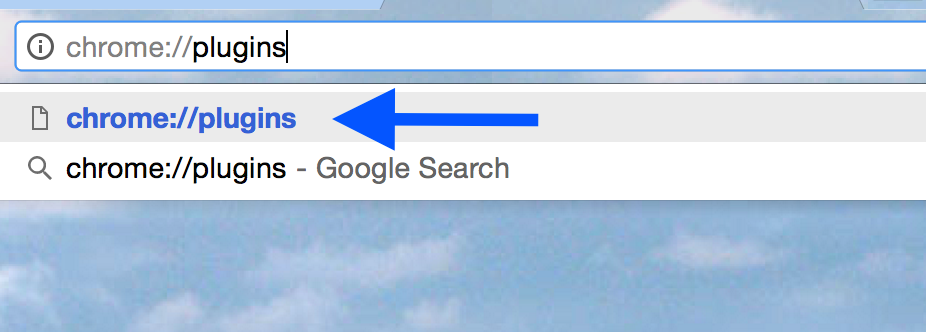
If you need to keep Flash running on a chromebook for a bit longer, you can do it using the directions below.


  1. Open a new tab and go to "chrome://plugins".  Screen Shot 2016-09-29 at 11.21.28 AM.png
  2. Look for "Adobe Flash Player" and check "Always allowed to run".  Screen Shot 2016-09-29 at 11.22.11 AM.png

Thursday, November 12, 2015

Screen Savers & Passwords

If you're using a Mac and it goes to the screen saver or goes to sleep, sometimes it will "lock."  When it wakes up, it will ask for your password to unlock.  It just wants to make sure that you're really you and not someone who sneaked up while you were out of the room.

If this feature is getting in the way, you can adjust it.

First, go to the Apple menu and select System Preferences.


Next, click on the "Security & Privacy" icon.


Lastly, make the adjustments you want.  This could include lengthening the delay so it is 15 minutes or even an hour instead of 5.  You could even turn it off entirely.


Wednesday, April 29, 2015

LucidChart: Presenting & Zooming with Charts

LucidChart just added a new feature to make presenting charts more interesting.

First, you use LucidChart to make a mind-map, flow chart, food web, organizational chart, or some other chart.  Then you designate areas of the chart as "slides."  When you're ready to present the chart, LucidCharts will zoom in to the first slide, then the second, and so on.

For a better explanation, check out this one minute video.


If you're familiar with Prezi, this is similar.  Unlike Prezi, LucidChart can store its files inside Google Drive, right next to your other files.  LucidChart is also capable of more complex charts and making charts for printing.

To give this a try, just go to your Drive and click on "New".  Then go to "More" and "Lucidchart".

Wednesday, April 8, 2015

FlippityNet Quiz Show

If you want an easy-to-build, "Jeopardy"-like game show to run in class, check out Flippity Quiz Show.

Just click on "this template" and then "Make a copy" and you'll get a spreadsheet.


Change the headers from "Category1", etc. to the categories that you want to use.

The lines have labels like "100Q" to show that its the 100 point Question or "100A" for the 100 point Answer.  Change the questions and answers (and categories) to suit your needs.


When you're done, click on "Get the Link Here" at the bottom of the screen.  Follow those directions, and you'll get a link named "Click here to go to your Flippity Quiz Show".


When its time to run the game show, turn on your projector, open this file, and click on the link.  That will open up your quiz show.  The quiz show can have up to six teams by using the "+" and "-" buttons at the bottom of the screen.

Wednesday, December 3, 2014

Custom Avatar in Google Classroom

You can now have a custom icon for yourself (a.k.a. avatar) in Google Classroom.  This personalizes your online classroom a bit and gives a little visual feedback to students by putting your avatar next to anything you write.


If you want to use a custom avatar, you can set it up with the following steps.

  1. Pick out your avatar.  This can be any photo you took with your phone, found online, or anywhere else.  For a professional look, use a photo like those on ID badges or in the yearbook.
  2. Login to Google Classroom.
  3. Click on the icon in the upper-left corner that looks like three horizontal lines.  A menu will slide out of the left side of the page.
  4. Click on "Settings" at the bottom of the panel.
  5. Click on "Change profile picture".
  6. Follow the on-screen steps for selecting your photo.  If its on your phone, you might need to email it to yourself and then download it on the computer.


That is it.  Once its set up, every classroom, announcement, assignment, and comment you make will have your avatar next to it.

Tuesday, October 14, 2014

PikToChart.com for Infographics & Signs

If you've ever needed a quick way to build a small sign or flier quickly, give PikToChart.com a try.  It provides a way to build "infographics" - highly visual documents that communicate tips and/or data.  It lets you quickly make things like this:

Some ways to use PikToChart include making a sign for your classroom, a flier for an event, or having students color code maps as an assignment.  Students can even research a topic and build an infographic as a summary of their research or as a presentation tool.

Getting started is amazingly quick.
  1. Go to piktochart.com
  2. Click on "Login" on the top-right.
  3. Click on the Google logo.
  4. Click "Accept".
You're now logged in and ready to go.  Pick a template, drop in your material, and go.  Adding things is just point-and-click.  Objects can be moved around the page with a simple click-and-drag.

When you're done, use the "Download" button on the top right to keep a copy.  You can put that file in email, Google Classroom, or share it on social media.

Wednesday, October 8, 2014

Clip Art in Google Docs

Want an easy way to spice up your documents?  There is a quick way to add clip art to Google Docs.  To install it, follow these simple steps:

  1. Create or open any Google Doc.
  2. Click on the "Add-ons" menu and then "Get add-ons..."
  3. You'll see the add-ons collection.  To cut through the list quickly, search for "clipart" on the upper-right corner.


  4. Click on the "+ Free" button.
  5. Click the "Accept" button.  


Congratulations.  Your new clip art system is now installed and ready to use -- in this document and any others.

To use it, just click on "Add-ons", then "Openclipart" and "Search Clipart".  (Its easier than it sounds.)


That will bring up a sidebar where you can search for images and just double-click on them to insert them into your document.


Saturday, September 13, 2014

"Read Mode" for Chrome Removes Distractions

Many web pages are full of distracting advertisements, animations, buttons, and "If you liked this..." links.  These can often get in the way of the real reason that you went there:  To read something.

To handle this, install "Read Mode" on Chrome or chromebooks.  It can take a cluttered website and strip away the distractions, noisy ads, and other "busy" items that tug at your attention.  In other words, this:

Before using Read Mode

...becomes this:

Read Mode leaves only the useful part

To install it, go to the Chrome Web Store (at chrome.google.com) and search for "Read Mode".


Once installed, there will be a small eye glasses icon at the top-right whenever Read Mode thinks it can remove distractions.  Click that and it will perform its magic.

Click the "eye glasses" to activate Read Mode

Bonus tip:  Using Read Mode before print a web page can make the printout much cleaner and save ink!

Tuesday, March 18, 2014

Chromebook Login Quick Fix

Chromebooks are largely trouble-free, but no computer is perfect.  One thing that sometimes goes wrong on a chromebook is that it gets "pointed at" the wrong wireless network and asks you to login to the "Guest" wireless network.  Fortunately, this is easy to fix.

If you see this:


That means the chromebook is on the "Guest" wireless network.  To switch it back to "Data" just do the following.

First, click on the lower-right corner.  A menu will pop up.


Next, click on "Connected to Guest".


Lastly, click on "Data".


Wait for a few seconds while it connects.


Once it connects, things should be back to normal.


Monday, December 23, 2013

Google has notified me of an upcoming change that I wanted to share with you.  Its largely a cosmetic change, but it could easily confuse someone not expecting it.

Sometime in early 2014, they will be changing the login screen from our custom CDCSD page to the standard "Google login" style.  Here are two pictures to show the difference.


Current Login Screen:


Inline image 1


Future Login Screen:

Inline image 2


In the case of chromebook use, once a student logs in to the chromebook all of their Google services (such as Docs) will already be logged in.  So they might never be exposed to this change.

Anyone using Google Apps from computers at home and from Mac and Windows computers at school would most likely notice the difference.

Google has stated simply that this change will occur "early next year."

Tuesday, November 26, 2013

Shopping Tips, 2013

This is my shopping tips update for 2013.  I should have put this out a week ago, but I lost track of time.  Fortunately, this is still useful.

Other Tips

First off, I want to point out my previous two years' advice.  Its all still valid.  I especially encourage the smart-phone shopping trick from 2012.


Video Games

If you're looking for a Wii U, I've noticed something odd.  The Basic model is $299.  The Deluxe model (which is the Basic model plus some stuff) is $299.  The Deluxe model with two Super Mario Brothers games or a Zelda game is $299.  The Basic model with the new Skylanders:  Swapforce game and a bunch of Skylanders parts is $299.  So if you're looking for a Wii U, pick the game bundle that you want and get that, but don't get the Basic model.

If you are shopping for someone who doesn't have any gaming system at all, the older X-Box 360, PlayStation 3, and Wii are available for record low prices.  I've noticed used Wii consoles at GameStop for well under $100.

iPads

There are new iPad models out and a lot of people are excited.  The interesting thing for deal-hunters, though, is that the previous models are deeply discounted now.

If you go to apple.com/store, scroll all the way to the bottom, and click on "Refurbished & Clearance" in the small print, you can find deals on the 3rd and 4th generation models.  I have a 3rd generation iPad myself and it is still doesn't feel old or slow.

Chromebooks

A few parents have asked me about buying chromebooks for home.  Its a low cost, fast, virus-free computer and we have hundreds of them in the schools.  They make a great second computer at home and a great way to end arguments over which of your children gets a turn at the computer.  I can't recommend it (yet) as the only computer in the house if the parents need to do office work, but its great for Internet use, students working from home, or a second computer.

At this point, I'd recommend the Acer C720 model with 4GB of RAM.  There is a model with 2GB of RAM, as well.  Either would be a good computer, but the one with 4GB of RAM is going to handle multitasking better.  The 4GB model costs roughly $250 and the 2GB model costs about $200.

If you want a bigger screen, the HP Chromebook 14 is a nice model.  Just make sure you're buying this year's model.  For $299, you get a chromebook with a big screen and a 9.5 hour battery.

One word of caution:  Avoid the HP Chromebook 11 model.  I don't think they're sold any more, but they were known to overheat.

Tuesday, October 8, 2013

Keychain "Nagging" on Macs

Ever see this while using a Mac on the web?


It means that your "keychain" didn't unlock when you logged in to the Mac.  This article will explain how that happened and how to fix it.


How to Fix It

You're probably reading this because you want to fix this, so let's start there.

  • Logout of the Mac.
  • Login to the Mac, but go slowly.
  • When you are asked to pick between three choices, pick "Create New Keychain".


How it Happened

As you use the web, sometimes you see forms that ask for your name, password, credit card information, etc.  The Mac you're using will try to store those bits of information for you.  That way, when you see a form like that again in the future, it can fill the form in for you and save you some typing.

That information is stored in a small database called a "keychain."  The keychain is encrypted so that no one can steal your information.  So in order for you to use it, it must be "unlocked" when you login.  That happens when you enter your password while logging into the Mac.

But what if your Mac password gets changed?  The keychain won't know.  So it would keep using your old password.  The most common example of this is when students reach 6th grade.  We change passwords at 6th grade to make them harder to guess.  Unfortunately, it means that the old password is still used by the keychain.  There is no way around this.  So its left to 6th graders to create new keychains when they login.  The same thing can happen when someone (student or employee) needs their password changed.

Tuesday, September 3, 2013

View Schedule for Labs

Ever need to know which computer labs are available for a future class?  Follow these directions to place the schedule of several computer labs inside your calendar for easy reference.

  • Login to Google Calendar.
  • Click on the small "down-arrow" button next to "Other Calendars".  Then click "Browse Interesting Calendars" in the menu.

  • Click on the "More" tab and then "Resources for cairodurham.org".


  • For each lab or room that you want to view, click on "Subscribe".  The word "Subscribe" will change to "Unsubscribe".  (You can come back here and click "Unsubscribe" in the future if you change your mind.)


  • Click on "<< Back to calendar".

Screen shot 2011-12-07 at 10.56.21 AM.png

  • At that point, you should see any calendars that you added on the left side of your main view.

Screen shot 2011-12-07 at 11.14.39 AM.png